File Explorer component in React
03/12/2025
We will be creating and going over a component that is very commonly used for displaying files and folders.
Key features
- Properly indent the folder/file structure based on nested level
- Display whether object is file or folder
This basically just means that we need to indicate that this is a folder and/or this is a file; this can be done with just icons
- Ability to expand and collapse folder contents
Include some controller for each folder where we can expand/collapse the contents by clicking on it
- Folder list contents are sorted with folders at the top
Just like how most file explorers work, the folders are sorted to the top and files are at the bottom
- Folder and file names are sorted alphabetically
Sorted a-z, top to bottom
- Files and folders can be selected by clicking
Highlight the background light blue when a file or folder has been selected.
Here's a working implementation of the file explorer component running on React along with the tree data viewer:
1[
2    {
3      name: "package.json",
4    },
5    {
6      name: "tests",
7      children: [
8        {
9          name: "test.js",
10        },
11      ],
12    },
13    {
14      name: "tsconfig.json",
15    },
16    {
17      name: "README.md",
18    },
19    {
20      name: "src",
21      children: [
22        {
23          name: "index.html",
24        },
25        {
26          name: "App.tsx",
27        },
28        {
29          name: "components",
30          children: [
31            {
32              name: "Dropdown",
33              children: [
34                {
35                  name: "Dropdown.tsx",
36                },
37              ],
38            },
39          ],
40        },
41        {
42          name: "pages",
43          children: [
44            {
45              name: "About.tsx",
46            },
47          ],
48        },
49      ],
50    },
51    {
52      name: "config",
53      children: [
54        {
55          name: "config.json",
56        },
57      ],
58    },
59  ]
This is a pretty good project and fun one to think about and work on. The first thing I thought about was how to dynamically generate just a list of the folders and files based on the nested root data structure. Intuitively, you would think that simple loop going through the root array and the children arrays is a good start, but since you don't know how the nested the arrays are, simple loop wouldn't work. Recursion would work best for something like this.
Displaying all of the files and folders using recursion
The concept with recursion is simple, generate a flat list of folders/list objects by going through the array and calling itself when we come across a "children" key. Having the "children" key means that it is another folder, which point, the recursion happens again.
Here's the code for the listing out the folders/files using recursion:
1const FileExplorer = ({ root = [] }: FileExplorerProps) => {
2  const [data, setData] = useState<Array<FileFolderObjectInterface>>(root);
3
4  return (
5    <div className={styles.fileExplorerContainer}>
6      {sortFilesFolders(data).map((obj, index) => (
7        <FileFolder key={index} fileTree={obj} level={0} fullPath={obj.name} />
8      ))}
9    </div>
10  );
11};
12
13const FileFolder = ({ fileTree, level, fullPath }: FileFolderProps) => {
14  const { name, children } = fileTree;
15
16  return (
17    <div>
18      {children ? (
19        <>
20          <Folder folderName={name} />
21          {sortFilesFolders(children).map((obj, index) => (
22            <FileFolder key={index} fileTree={obj} />
23          ))}
24        </>
25      ) : (
26        <File filename={name} />
27      )}
28    </div>
29  );
30};
Here, we have two main components, <FileExplorer /> and <FileFolder />. <FileExplorer /> will start the initial loop on the root structure, calling <FileFolder /> in the process. While inside the <FileFolder />, we check if the object is a file or a folder, if file, then end there by returning the File component. However, if a folder, then display the folder component and call <FileFolder /> again using the children as the next object. For now, both the File and Folder just returns the name of the either the file or the folder:
1const File = ({ filename }: FileProps) => {
2  return (
3    <div className={cx(styles.fileFolder)}>{filename}</div>
4  );
5};
6
7const Folder = ({ folderName }: FolderProps) => {
8  return (
9    <div className={cx(styles.fileFolder)}>{folderName}</div>
10  );
11};
For now, this will give us a flat list in the UI, which looks like this:
1package.json
2tests
3test.js
4tsconfig.json
5README.md
6src
7index.html
8App.tsx
9components
10Dropdown.tsx
11pages
12About.tsx
13config
14config.json
Indenting the tree structure
Now, let's work on the indenting of the folder/file structure. This part is relatively because time the <FileFolder /> component is called recursively, we know that there is one more level, which means indenting is needed. We can use the index from the .map((_, index) => {}) to determine the nested level. And then, we'll need to carry that level further down the nested <FileFolder /> by passing the current level as a prop. And to visualize the nested'ness of the folders, we will add margin-left based on the levels. Here's how that code looks:
1const FileFolder = ({ fileTree, level }: FileFolderProps) => {
2  const { name, children } = fileTree;
3
4  return (
5    <div style={{ marginLeft: `${level * LEVEL_INDENT_MARGIN}px`, marginTop: 2 }}>
6      {children ? (
7        <>
8          <Folder folderName={name} />
9          {sortFilesFolders(children).map((obj, index) => (
10            <FileFolder key={index} fileTree={obj} level={level + 1} />
11          ))}
12        </>
13      ) : (
14        <File filename={name} />
15      )}
16    </div>
17  );
18};
Now, we should see the indenting of the folder/file structure:
1package.json
2tests
3  test.js
4tsconfig.json
5README.md
6src
7  index.html
8  App.tsx
9  components
10    Dropdown.tsx
11  pages
12    About.tsx
13config
14  config.json
Expanding and collapsing the folders
For the next step, we'll work on allow the user to expand and collapse the folders. The concept of how a folder is expanded or collapsed is simple, there should be a boolean state that defines if the recursive call for folder contents is be to done or not. The initial state is false which means that calling the contents of children recursively is not performed, hence, the folder is collapsed. Here's the code that:
1const FileFolder = ({ fileTree, level, fullPath }: FileFolderProps) => {
2  const { name, children } = fileTree;
3
4  const [expanded, setExpanded] = useState<boolean>(false);
5
6  return (
7    <div style={{ marginLeft: `${level * LEVEL_INDENT_MARGIN}px`, marginTop: 2 }}>
8      {children ? (
9        <>
10          <Folder folderName={name} setExpanded={setExpanded} expanded={expanded} />
11          {expanded && (
12            <>
13              {sortFilesFolders(children).map((obj, index) => (
14                <FileFolder key={index} fileTree={obj} level={level + 1} />
15              ))}
16            </>
17          )}
18        </>
19      ) : (
20        <File filename={name} />
21      )}
22    </div>
23  );
24};
25
26const Folder = ({ folderName, expanded, setExpanded }: FolderProps) => {
27  return (
28    <div
29      className={cx(styles.fileFolder)}
30      onClick={() => {
31        setExpanded(!expanded);
32      }}
33    >
34      {expanded ? <ExpandMoreIcon /> : <ChevronRightIcon />}
35      <div style={{ marginLeft: 5 }}>{folderName}</div>
36    </div>
37  );
38};
The click handler for expanding and collapse is done at the <Folder /> level which means that we'll need to pass the setting for the state as well. Additionally, the component visually indicates when it is expanded or collapsed by using a simple down/left icon.
Sorting the files and folders
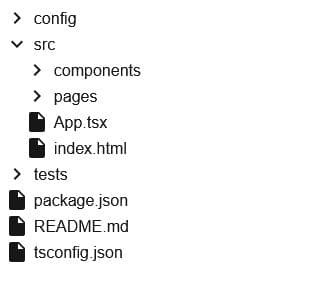
Almost there, moving on to the next task, sorting the tree so that the folders are the top and that the folders/files are sorted alphabetically. This is very easy, basically we just need to group the children array into folders and files and sort them before its processed recursively in <FileFolder />. This should be done separately in a helper function, also in a separate helper file to keep things organized.
1export const sortFilesFolders = (tree: Array<FileFolderObjectInterface>) => {
2  const files: Array<FileFolderObjectInterface> = [];
3  const folders: Array<FileFolderObjectInterface> = [];
4
5  for (const obj of tree) {
6    if (obj.children) {
7      folders.push(obj);
8    } else {
9      files.push(obj);
10    }
11  }
12
13  return [
14    ...folders.sort((a, b) => a.name.localeCompare(b.name)),
15    ...files.sort((a, b) => a.name.localeCompare(b.name)),
16  ];
17};
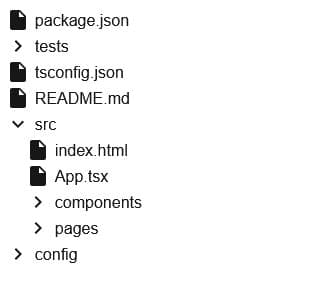
Before sorting:
After sorting:
Selecting files and folders
Now, for indicating the selection of a file or a folder, I needed to think it through a little bit. The quick approach is to create a new state at the top level (<FileExplorer />) and pass down the getter and the setter for all nested components. The setter and getter will be used to identify selected items. Now the very bad part about this approach is that we need to add more props to the <FileFolder /> component. In the example below, you can see that the additional getter/setter for the object selection state is showing early signs of prop drilling:
1const FileFolder = ({ fileTree, level, selectedObj, setSelectedObj }: FileFolderProps) => {
2  const { name, children } = fileTree;
3
4  const [selectedObj, setSelectedObj] = useState<string | null>(null);
5
6  return (
7    ...
8    {sortFilesFolders(children).map((obj, index) => (
9      <FileFolder
10        key={index}
11        fileTree={obj}
12        level={level + 1}
13        selectedObj={selectedObj}
14        setSelectedObj={setSelectedObj}
15      />
16    ))}
17    ...
18};
The code above is not ideal because of the prop drilling but more importantly, if the states change because of the file/folder selection, then the individual file/folder components will re-render. So, there needs to be a better and more performant solution, state management, to easily detect when changes to selection is done and update accordingly.
To set up a quick state management system for this, we'll be using the React's built-in createContext() and the useContext(). This should be enough to solve the problem elegantly without having to use something like Redux.
Before we jump into that, I needed to think about how to uniquely identify a selected obj (file/folder). Folder name or file name wouldn't work because there could be multiple of the same file or folder names. If we use name and the level, it could work until you realize the same problem could be possible. Another approach is that we add on some kind of "id" for each object in the data structure which would be enough to uniquely identify them but its still not ideal. Finally, the approach I went with is to use the full path of the file/folder object as the unique identifier. This method means that we need to prepend the "full path" to each recursion so that it retains the full path throughout the entire structure.
Here's what the implementation of the full path looks like:
1const FileFolder = ({ fileTree, level, fullPath }: FileFolderProps) => {
2  const { name, children } = fileTree;
3
4  return (
5    <div style={{ marginLeft: `${level * LEVEL_INDENT_MARGIN}px`, marginTop: 2 }}>
6      {children ? (
7        <>
8          <Folder folderName={name} setExpanded={setExpanded} expanded={expanded} fullPath={fullPath} />
9          {expanded && (
10            <>
11              {sortFilesFolders(children).map((obj, index) => (
12                <FileFolder key={index} fileTree={obj} level={level + 1} fullPath={`${fullPath}/${obj.name}`} />
13              ))}
14            </>
15          )}
16        </>
17      ) : (
18        <File filename={name} fullPath={fullPath} />
19      )}
20    </div>
21  );
22};
And then lastly, here's the implementation for the state management using createContext and useContext:
1const FileExplorerContext = createContext<FileExplorerContextInterface>({
2  selectedObj: null,
3  setSelectedObj: () => {}
4});
5
6const FileExplorer = ({ root = [] }: FileExplorerProps) => {
7  const [data, setData] = useState<Array<FileFolderObjectInterface>>(root);
8
9  const [selectedObj, setSelectedObj] = useState<string | null>("/");
10
11  return (
12    <FileExplorerContext.Provider
13      value={{ selectedObj, setSelectedObj }}
14    >
15      <div className={styles.fileExplorerContainer}>
16        {sortFilesFolders(data).map((obj, index) => (
17          <FileFolder key={index} fileTree={obj} level={0} fullPath={obj.name} />
18        ))}
19      </div>
20    </FileExplorerContext.Provider>
21  );
22};
23
24const FileFolder = ({ fileTree, level, fullPath }: FileFolderProps) => {
25  ...
26}
27
28const File = ({ filename, fullPath }: FileProps) => {
29  const fileExplorerContext = useContext(FileExplorerContext);
30
31  return (
32    <div
33      className={cx(styles.fileFolder, { [styles.selected]: fileExplorerContext.selectedObj === fullPath })}
34      onClick={(e) => fileExplorerContext.setSelectedObj(fullPath)}
35    >
36      <InsertDriveFileIcon /> <div style={{ marginLeft: 5 }}>{filename}</div>
37    </div>
38  );
39};
40
41const Folder = ({ folderName, expanded, setExpanded, fullPath }: FolderProps) => {
42  const fileExplorerContext = useContext(FileExplorerContext);
43
44  return (
45    <div
46      className={cx(styles.fileFolder, { [styles.selected]: fileExplorerContext.selectedObj === fullPath })}
47      onClick={() => {
48        setExpanded(!expanded);
49        fileExplorerContext.setSelectedObj(fullPath);
50      }}
51    >
52      {expanded ? <ExpandMoreIcon /> : <ChevronRightIcon />}
53      <div style={{ marginLeft: 5 }}>{folderName}</div>
54    </div>
55  );
56};
Thats it! This has been such a great project and it shouldn't take too long to complete which is why I encourage most newer engineers to take to take this on. It's importantly to realize that the same concept can be applied for other use cases besides navigating a file tree.
Thanks for reading along!
Update: minor style issue with indenting
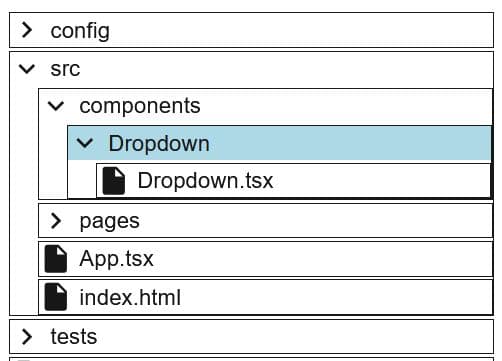
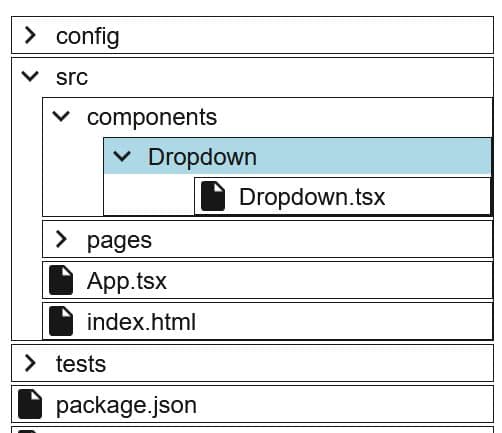
Previously, the indenting was done by taking the current level in the <FileFolder /> component and the margin-left was added for each level. So for example, if the level is currently 2, then (20px x 2), so 40px was used as the margin-left. It initially appeared to worked correctly as expected, however, I noticed that the increase in margin-left was not consistent for each level. Between /src and /components is 20px, however, between /components and /Dropdown, its 40px. To make it look correct, between /components and /Dropdown, it should only be 20px. So to fix it, it needs to just 20px for itself at each recursion, with 0px being applied at the root level.
1marginLeft: `${level > 0 ? LEVEL_INDENT_MARGIN : 0}px`We'll add border onto the folder components to see the issue and fix easier to understand:
Before fix:
After fix: